Ask questions about a file
Attach source material when your request depends on a document, image, or other supported file. This helps the assistant work from your material instead of guessing what it contains.
Watch the walkthrough
Section titled “Watch the walkthrough”Read the walkthrough transcript
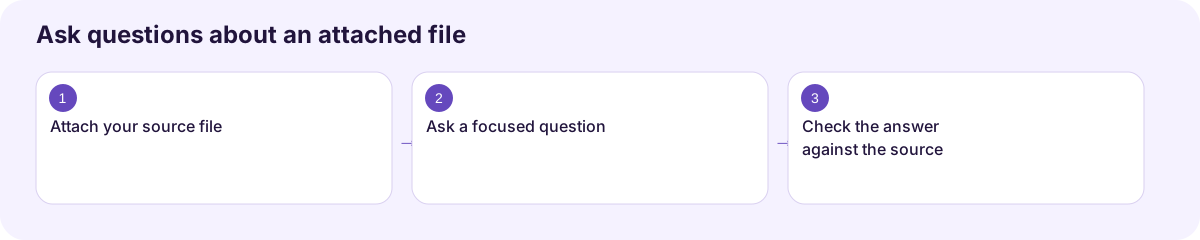
1. Attach your source file
Let's turn a project brief into answers we can check. Choose Add content, then attach your file. Wait until its name appears beside the message box before you continue.
2. Ask a focused question
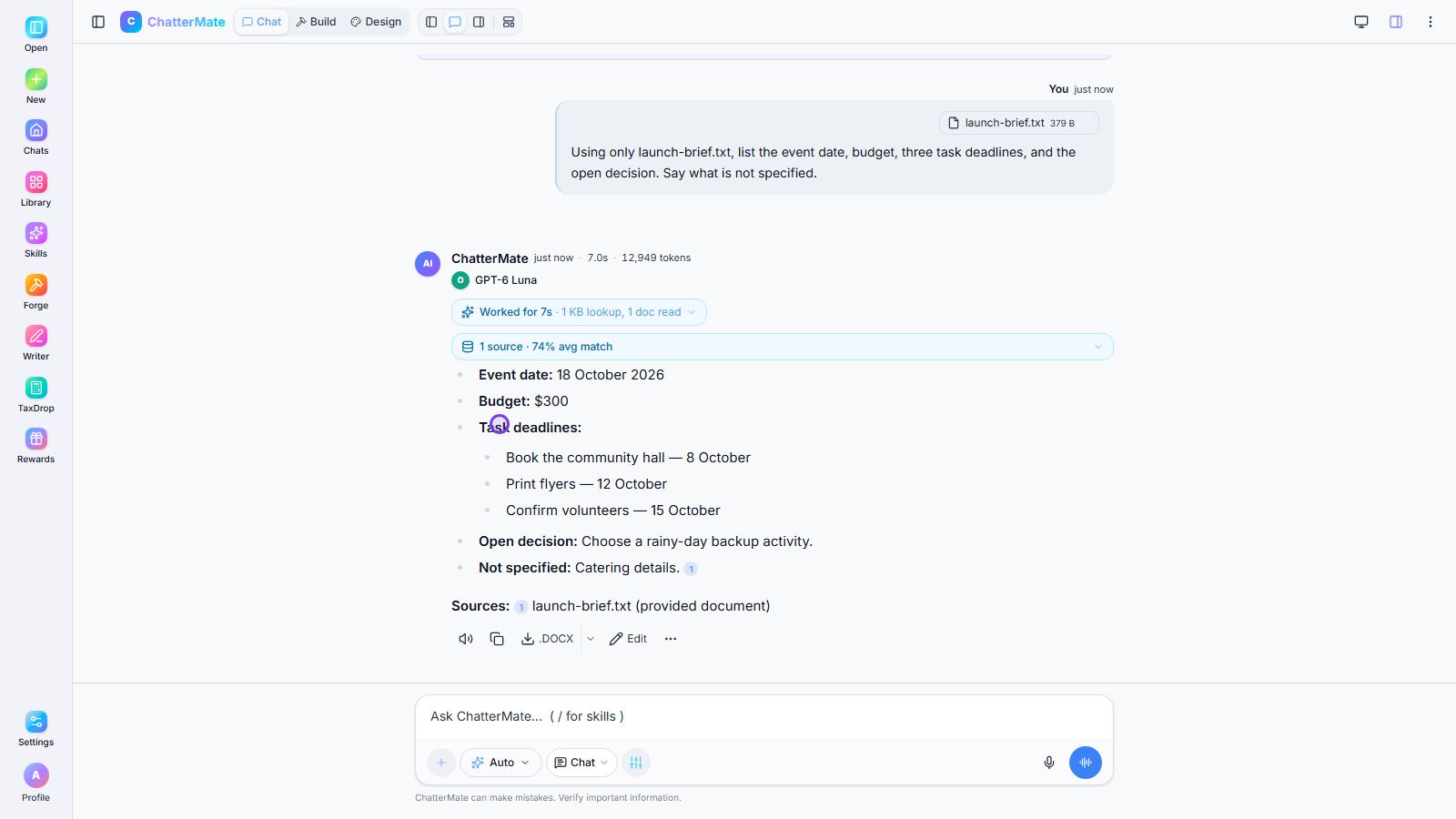
Now tell ChatterMate exactly what you need. We're asking for the date, budget, deadlines, and open decision. We also ask it to say when the file doesn't provide an answer.
3. Check the answer against the source
Here's the answer, grounded in our brief. Check the dates and budget against your original file. Notice the source reference, and the catering detail marked as not specified. Keep that same checking habit with your own documents.
Download video · Captions · Transcript
Attach and ask
Section titled “Attach and ask”- Start or open the relevant conversation.
- Choose Add content beside the message box.
- Select the file option offered by the menu and choose your file.
- Wait for the file to finish uploading or processing.
- Check that the intended file is attached.
- Ask a specific question about it, then send the message.
Example:
Summarize the attached project brief. List the goal, deadlines, decisions needed, and any missing information. Use only information in the file; say when something is not specified.
Review the answer against the original file. For an image or scanned page, check names and numbers that may have been read incorrectly.
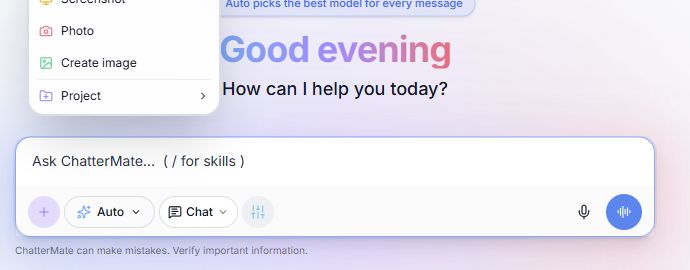
Choose Files or photos for a document. The video above verifies upload, processing, a source-grounded answer, and its source reference.
If a file is rejected
Section titled “If a file is rejected”Read the upload error for supported file types, size, and storage limits. Limits depend on the running service and your account; this guide does not assume a fixed size limit. Try a smaller relevant extract if the file is too large. Do not repeatedly submit while an upload is still processing.
A file displayed in Files, a project knowledge file, and a generated artifact are different kinds of content. Check where a file was attached before assuming it is available to every conversation.
Related: Projects and Library.
Workflow at a glance
Section titled “Workflow at a glance”