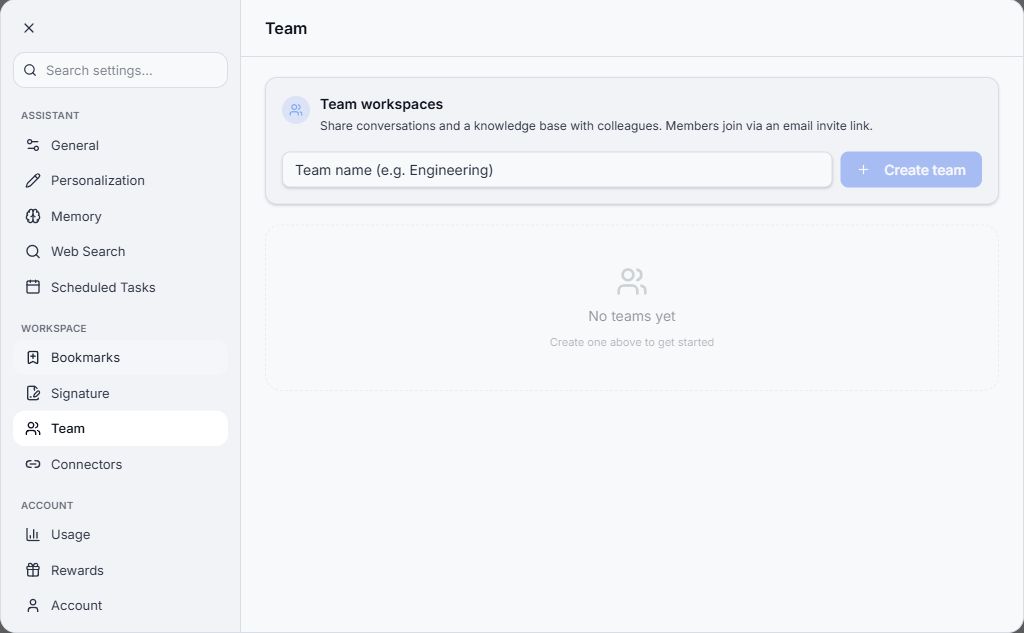
Work with a team
Team workspaces organize collaboration with colleagues. Team actions depend on your role and the permissions available to the workspace.
Create or join a team
Section titled “Create or join a team”- Open Settings → Team.
- If you are creating a workspace, enter its name and use Create team.
- If you received an invitation, use its link and the intended account.
- Check team membership after joining.
Join a team through the email invitation link sent to your account.
Invite a colleague
Section titled “Invite a colleague”Open the intended team’s controls and enter the colleague’s email in the invitation form. Check the destination and offered role before sending. Ask the colleague to use the invited account, and check whether the invitation is still pending or the person has joined.
Manage access
Section titled “Manage access”Inspect member roles and available policies before changing access or removing someone. A shared knowledge base and shared conversations can have their own access rules. Do not assume all of your personal conversations become visible merely because you join a team.
For a missing team or unavailable action, check the current account, invitation status, and role. Use the role descriptions and limits shown for your team.