Save and reuse a system-prompt template
Use Settings → General → System prompt for instructions that shape a conversation from its start. Saved templates let you keep separate instructions for different tasks.
Watch the walkthrough
Section titled “Watch the walkthrough”Read the walkthrough transcript
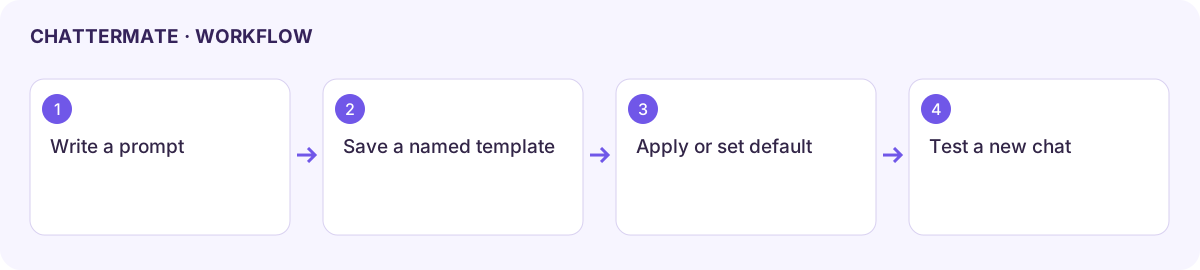
1. Write and name your template
Want to reuse a conversation style? Open Settings, General, and write a focused system prompt. Choose Save as template and give it a name you can recognize.
2. Save the reusable prompt
Choose Save. The template now appears in Saved templates. Saving keeps it available; it doesn't automatically make it your account default.
3. Apply it and check the scope
Select the template to apply its text. Check the editor before starting a new chat. The browser setting and account default are separate controls. This demonstration restores the original prompt afterward.
Download video · Captions · Transcript
Save a template
Section titled “Save a template”- Write a focused system prompt. For example: “Help me plan volunteer work. Use short numbered steps, preserve supplied dates, and ask when a detail is missing.”
- Choose Save as template, enter a recognisable Template name, and save.
- Find the new entry under Saved templates.
- Use Apply this template to load it into the prompt editor. Review the text before applying it to new conversations.
- Start a new chat and test a small task. Existing conversations already have their own starting context.
Understand the two defaults
Section titled “Understand the two defaults”The editor’s apply control uses the prompt for new conversations on this browser. The saved-template default control stores a default on your account. These are distinct actions; saving a template alone does not mean it became the active default.
Use the template’s default indicator to check which account template is selected. Rename a template to keep the list clear. Deletion asks for confirmation; keep a copy of important instructions before removing them. Reset returns the editor to its default prompt.
Check conflicting instructions
Section titled “Check conflicting instructions”Personalization, project instructions, and the system prompt can all influence the task. If replies behave unexpectedly, simplify one layer at a time and test a new conversation. Do not put passwords, API keys, or private access credentials into reusable prompts.
Next: personalization and project context.
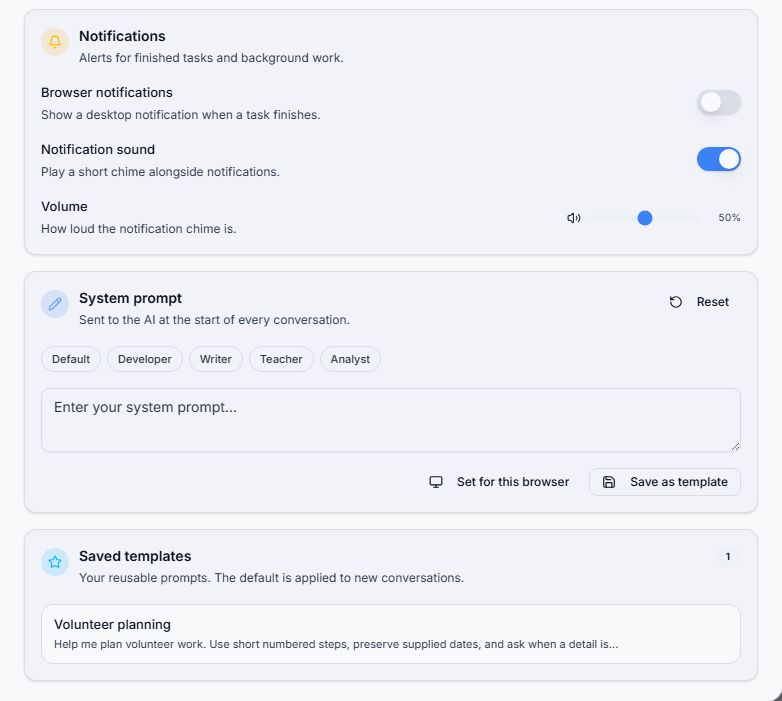
Saved Volunteer planning template and system prompt editor.
Workflow at a glance
Section titled “Workflow at a glance”