Style visuals and organize documents
Use visual controls for presentation and the document sidebar for organization. Change the visual’s meaning only when the original content needs to change.
Explore visual controls
Section titled “Explore visual controls”The local visual tools offered AI Suggestions, Styles, Layouts, Edit, and Brand. Select the visual you want to work with, then open the relevant control.
| Control | Intended task |
|---|---|
| AI Suggestions | Review available generated alternatives |
| Styles | Adjust the visual appearance |
| Layouts | Explore a different arrangement |
| Edit | Work on the visual’s content |
| Brand | Apply available brand styling |
After a change, check text contrast, label length, reading order, and whether arrows still express the intended relationships. These controls were inspected; each editing outcome needs a dedicated test.
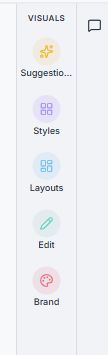
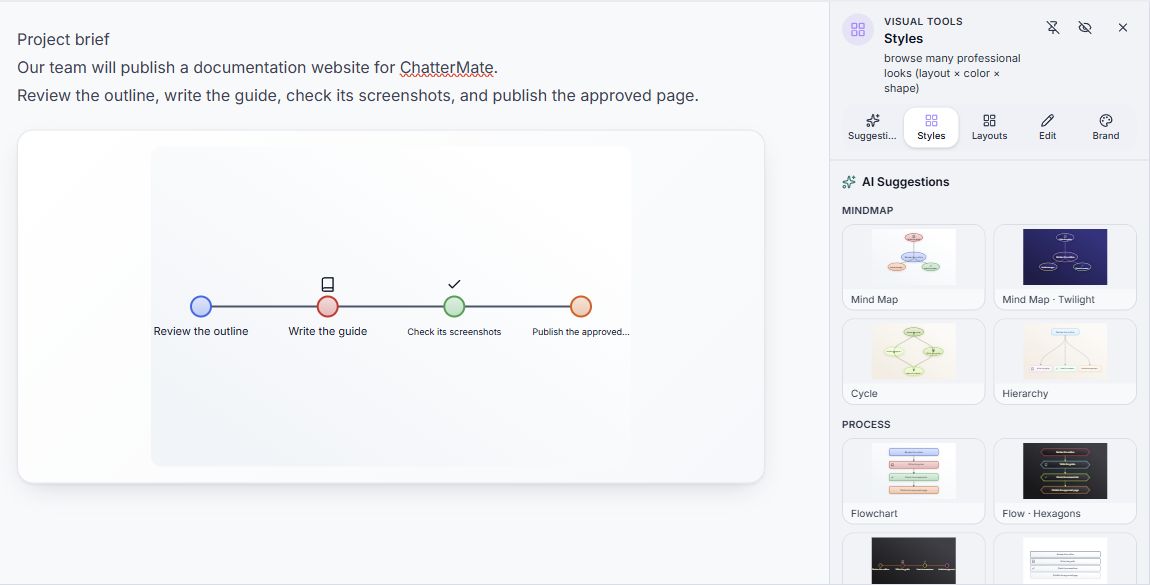
Select a visual to see its relevant controls. Hover can preview a style; clicking can apply it.
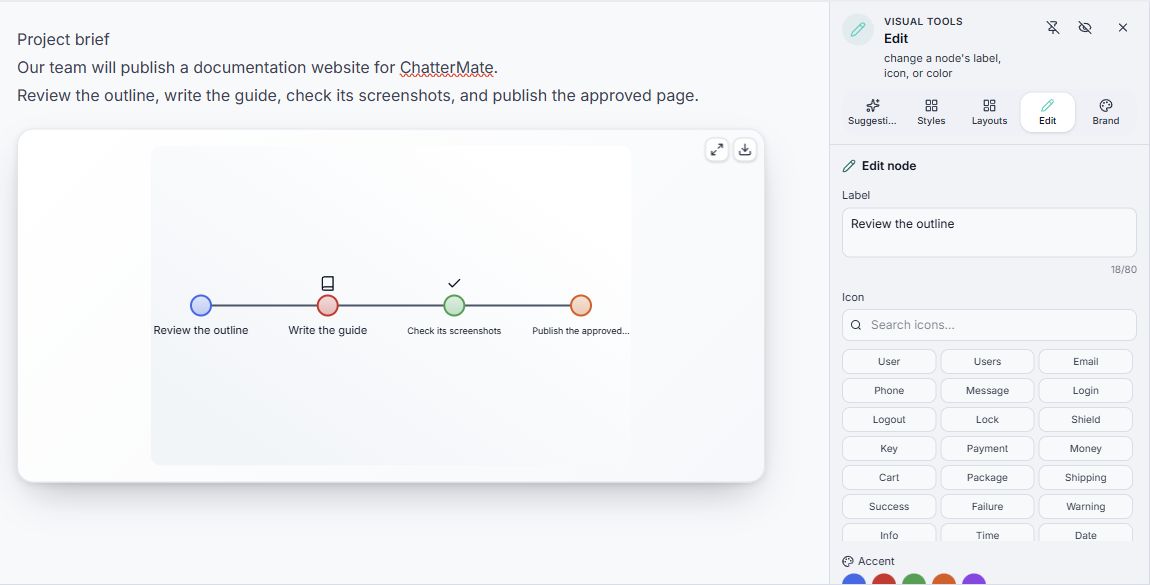
Selecting a node can open Edit. Review its label and controls before applying a change.
Organize Writer documents
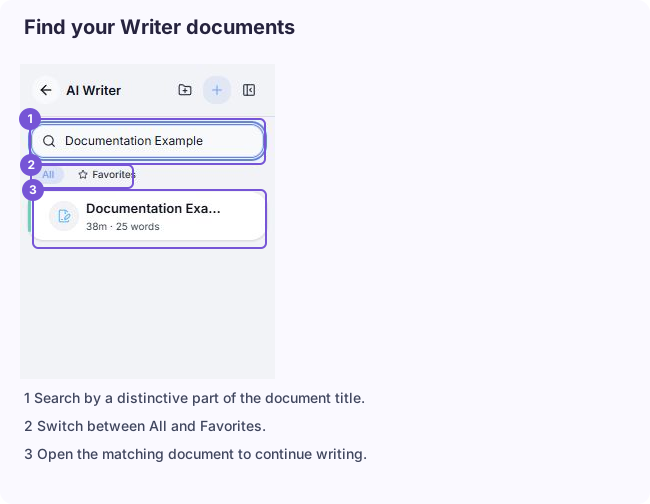
Section titled “Organize Writer documents”Expand the Writer sidebar to search documents or use All and Favorites. Give documents descriptive titles so searches work well. New folder is available for grouping related documents, and document actions offer further organization controls.
Writer’s start screen offers Templates as another starting point. Inspect a template before relying on its sample content. Replace example names, dates, and statements with your own material.
If a document is missing, clear the search and check All, Favorites, and relevant folders. Confirm that you are signed in to the correct account.
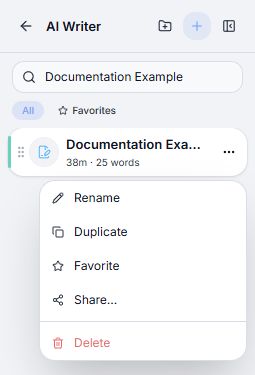
Opening the menu does not perform any of these actions.
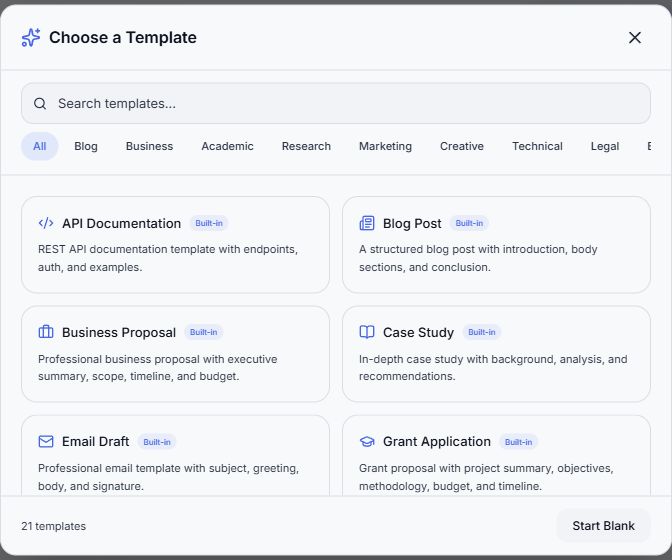
Inspect the template and replace its sample content before using the document.