Adjust your workspace and use shortcuts
Use appearance and layout controls to make the workspace comfortable to read. Keyboard shortcuts can speed up common actions, but their meaning depends on the active editor.
Appearance and notifications
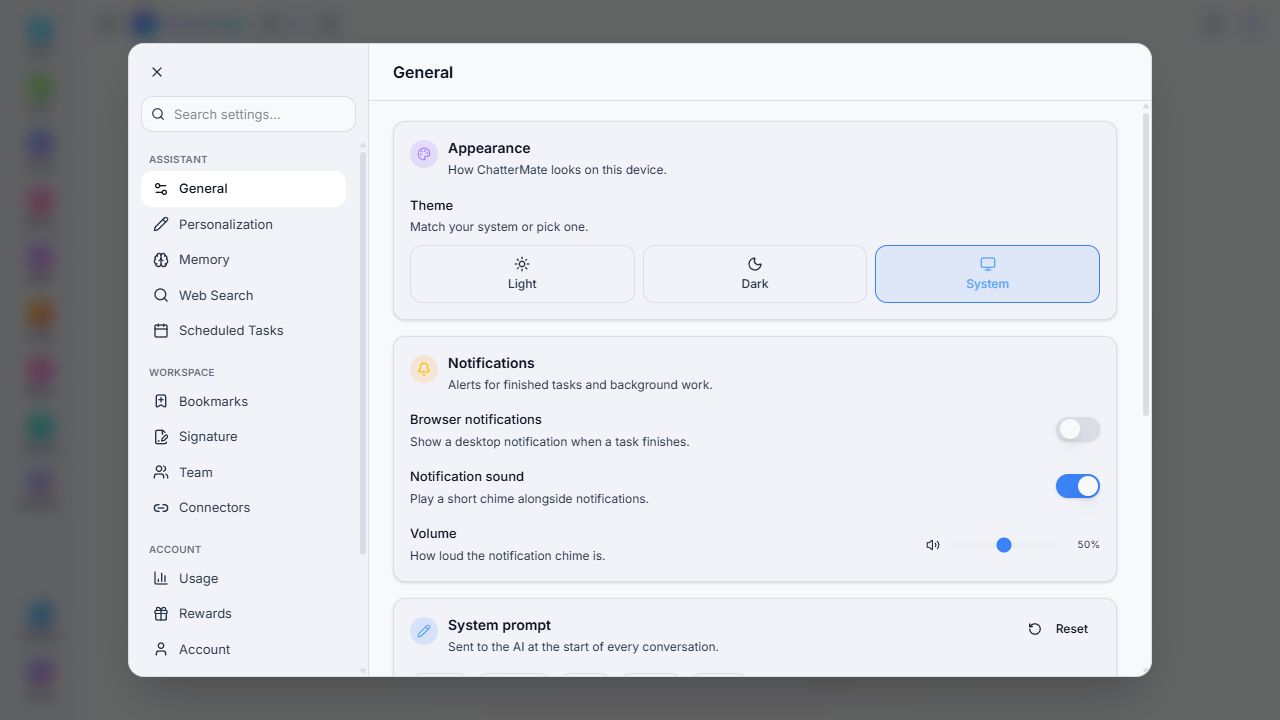
Section titled “Appearance and notifications”Open Settings → General. Choose Light, Dark, or System for appearance. Review browser notifications, notification sound, and volume. Browser notifications may require a separate browser permission.
Chat shortcuts
Section titled “Chat shortcuts”| Action | Windows or Linux | macOS |
|---|---|---|
| New chat | Ctrl+K | Cmd+K |
| Toggle sidebar | Ctrl+B | Cmd+B |
| Search messages | Ctrl+F | Cmd+F |
| Send message | Enter | Enter |
| New line | Shift+Enter | Shift+Enter |
| Stop a streamed response | Escape | Escape |
| Show shortcut help | ? | ? |
These are the chat shortcut definitions in the reviewed implementation. An editor can use the same key combination differently; for example, Writer uses Ctrl+B for bold text. Use the shortcut help for the active tool and click controls when a browser intercepts a shortcut.
The header’s layout controls show or hide the sidebar, conversation panel, and Canvas. A hidden panel is not deleted work. Reopen the relevant panel when you need it again.
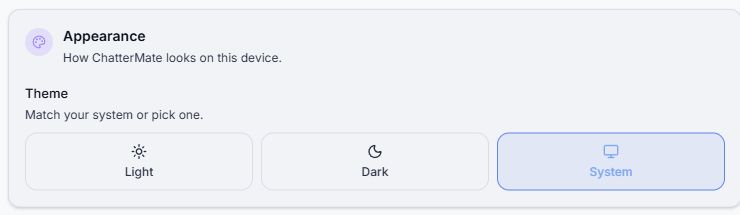
System follows this device’s appearance preference.
Reusable prompts and document signatures
Section titled “Reusable prompts and document signatures”Use system-prompt templates for saved conversation instructions, and Signature for the handwritten image used in supported generated documents.