Share and export a Writer document
Use Writer’s Share & Export dialog to distribute a finished document or download a copy. Check the document’s content and save state first.
Export a copy
Section titled “Export a copy”- Open the intended document and wait for Saved.
- Select Share & Export, shown as Share in the header.
- Open the Export tab.
- Leave Download selected for a local file.
- Choose an available format.
- Open the exported file and review it.
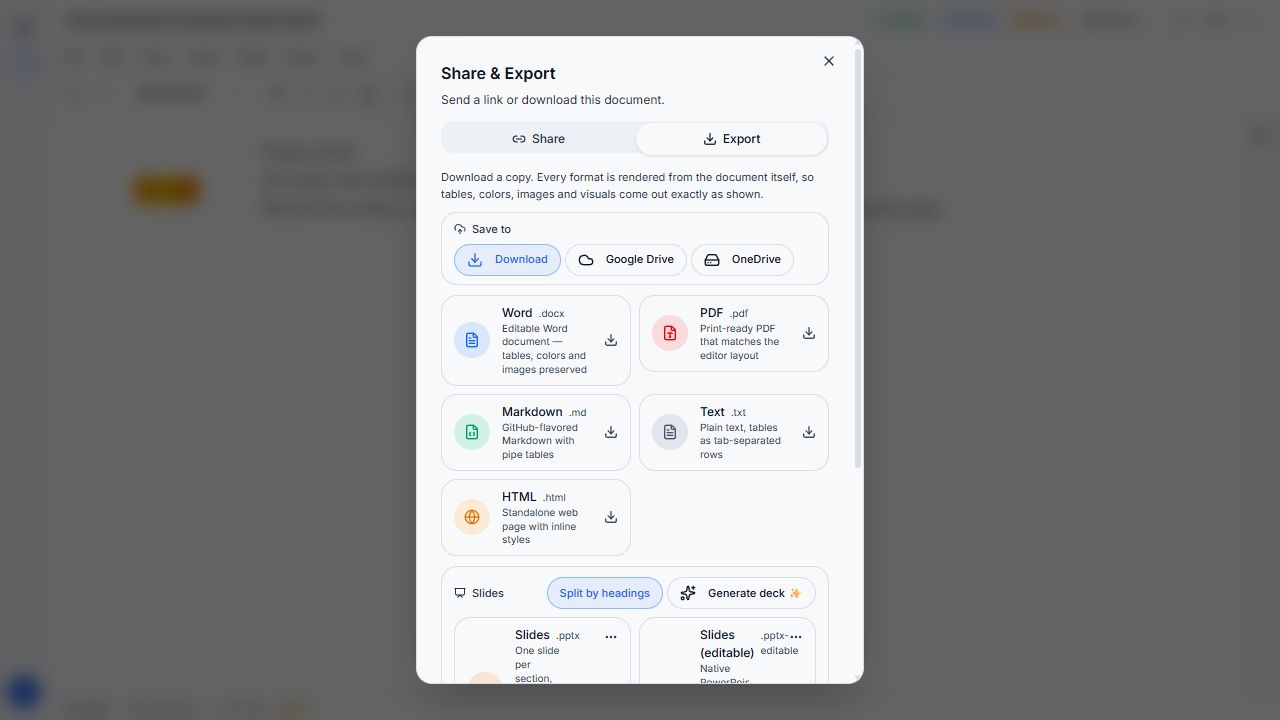
Controls inspected locally. Exported file fidelity has not been verified.
| Choice | Use it when you need |
|---|---|
| Word | An editable document |
| A document for reading or printing | |
| Markdown | Text for a Markdown workflow |
| Text | Plain text |
| HTML | A standalone web page |
| Slides | A presentation from document sections |
| Slides editable | PowerPoint text, bullets, and tables intended for editing |
Slide modes include Split by headings and Generate deck. Google Drive and OneDrive require a connected account. Include references offers a references section from the document’s citations.
Share a link
Section titled “Share a link”The new local example began Private — only you. In Share, review View only or Can edit, Allow download, password, and expiry settings before enabling the link. The expiry choices shown were Never, 24h, 7 days, and 30 days.
A link changes who can reach the document. Choose the intended permission, then check the resulting link’s view. Keep it private if you only need to export a copy. Sharing, expiry enforcement, and cloud exports still need end-to-end tests before this page is published.