Talk with ChatterMate in Voice Mode
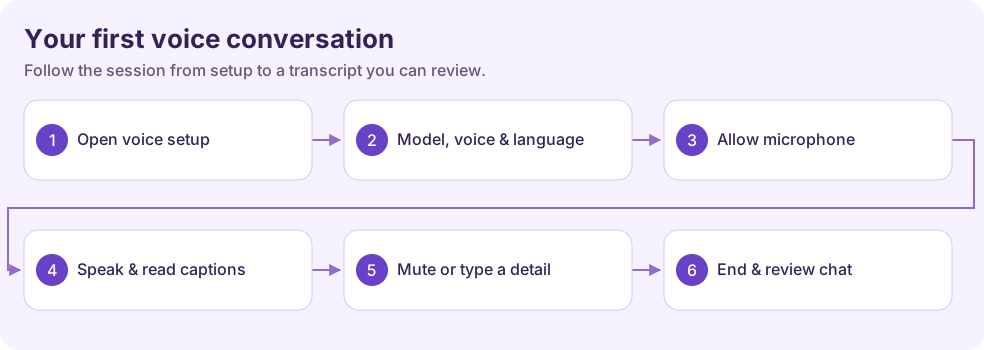
Use a live voice conversation when it is easier to talk through an idea, ask a follow-up, or explain a problem aloud. ChatterMate shows your spoken turns and the assistant’s replies in the conversation.
Before you begin
Section titled “Before you begin”Sign in to a regular account and check that Voice Mode is available. The app needs microphone permission, an eligible voice model, and available usage allowance. Headphones help keep the assistant’s audio from being picked up by the microphone.
Open the voice controls
Section titled “Open the voice controls”- Open Chat and wait for any response to finish.
- Keep the message box empty. If it contains text, the primary button is Send message; clear or send that draft first.
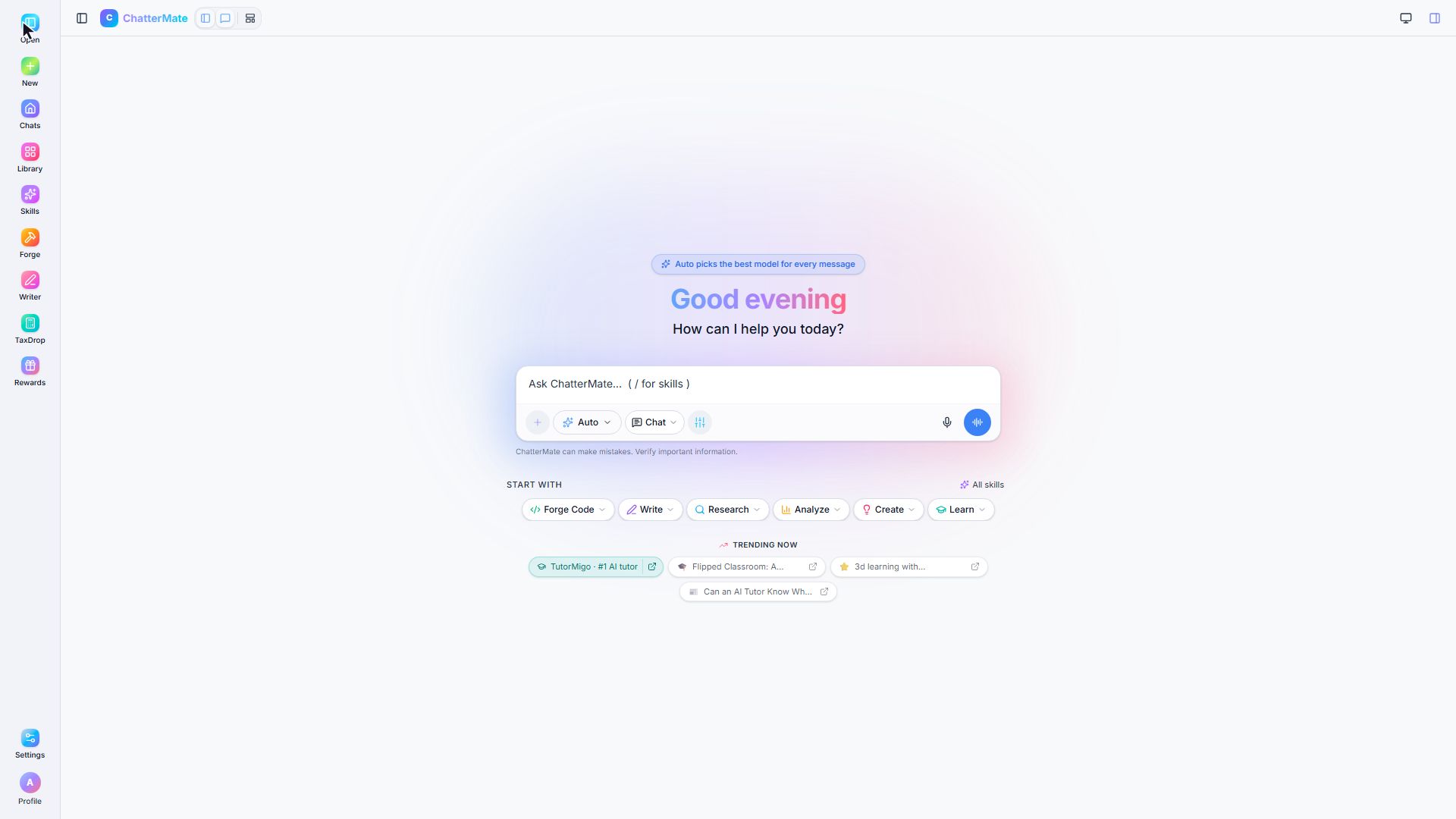
- Select Start live voice conversation, the audio-wave button beside the composer.
- The Voice conversation setup panel opens above the composer. On a phone, setup appears in a bottom sheet.
| Control | What it does |
|---|---|
| Start live voice conversation | Opens setup for a two-way spoken conversation |
| Start voice input | Dictates text into the message box for you to review and send |
| Send message | Sends the text currently in the composer |
Dictation depends on your browser’s speech-recognition support. Voice conversation uses the models configured for your account.
Choose the model, voice, and language
Section titled “Choose the model, voice, and language”Choose an available Voice model, then a Voice offered by that model. Model choices use provider and Standard or Premium labels. The available voices can change when you choose another model.
Choose Language for the conversation. Use automatic detection when that is appropriate, or select the language you intend to speak. Check the setup panel’s displayed allowance and maximum session duration before starting. Use the allowance information shown for your account.
Start talking
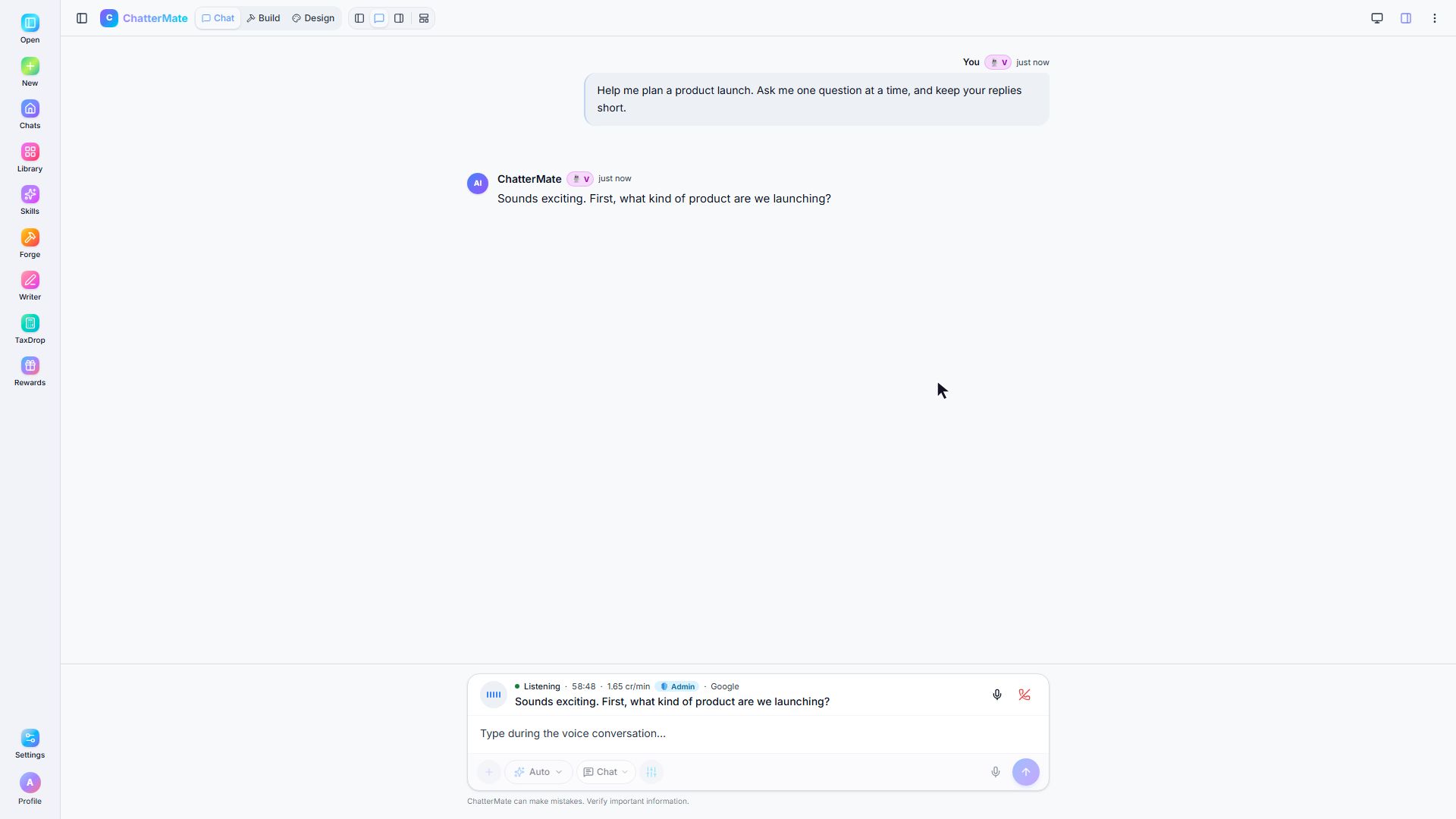
Section titled “Start talking”Select Start voice and allow microphone access when the browser asks. Wait for the live bar to show Listening before speaking. Start with a focused request:
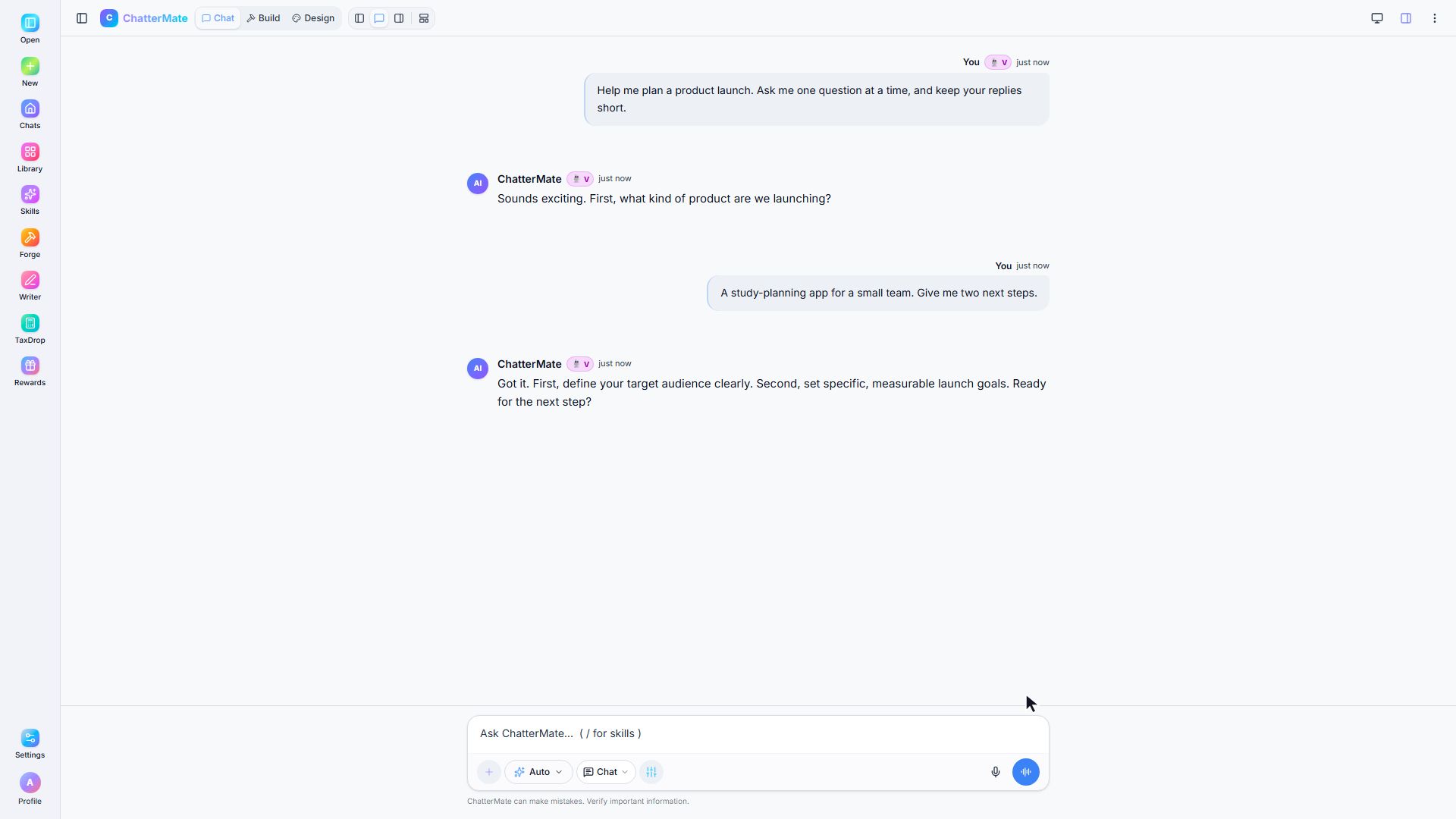
Help me plan a product launch. Ask me one question at a time, and keep your replies short.
Speak at a comfortable pace, then pause to let the assistant respond. The live bar shows Listening, Thinking, Speaking, or Working, along with the remaining time. Working means the assistant is using a tool; give that action time to complete.
Read the live caption and the conversation transcript to check names, numbers, and important details. If the assistant misunderstood, say the correction clearly. You can speak to interrupt a reply and redirect the conversation.
Mute, type, and end the session
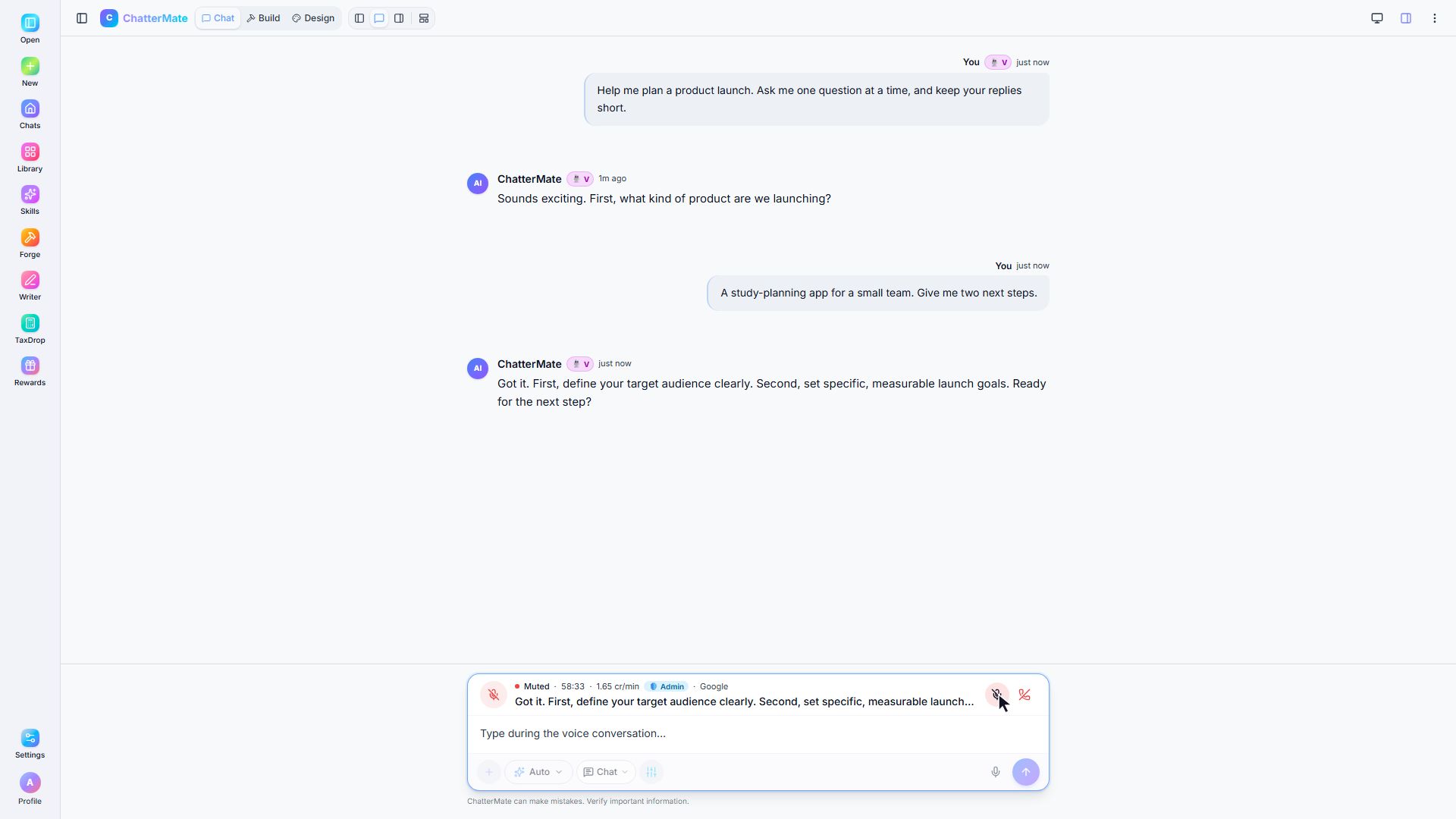
Section titled “Mute, type, and end the session”Use Mute microphone when you want to pause sending microphone audio. Select Unmute microphone to continue. Muting keeps the session open, so use End voice session when you are finished.
You can also type during an active session and choose Send typed message to voice conversation. This is useful for a spelling, a number, or wording you want to be exact. Model selection stays unavailable while a voice session is active; end the session before changing its configuration.
Select End voice session and allow the connection to close. Review the transcript in the chat before using its content. Treat names, calculations, and instructions as items to verify, just as you would in a typed conversation.
If Voice Mode is missing or cannot start
Section titled “If Voice Mode is missing or cannot start”Check that you are signed in, the composer is empty, and a previous response has finished. If setup says there is no eligible model or voice is turned off, contact support for help with availability.
For microphone, connection, or allowance problems, follow Voice Mode troubleshooting.
Next: Have a typed conversation.