Create and manage a custom skill
A custom skill saves a reusable instruction that appears in the Skills Hub and the enabled slash-command menu. It is useful for a recurring task with a consistent output format.
Create a focused instruction
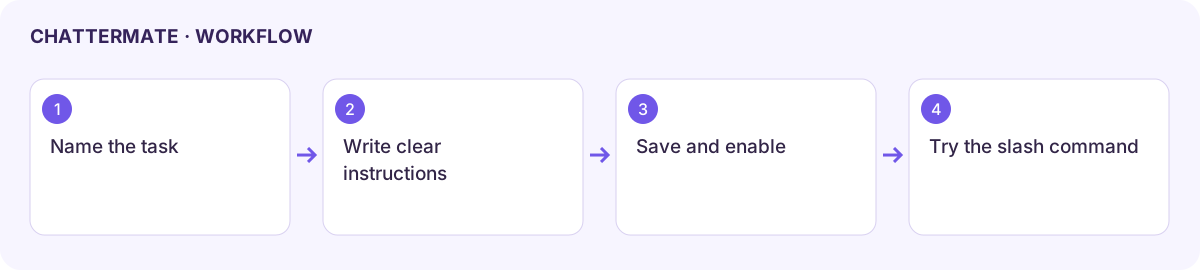
Section titled “Create a focused instruction”- Open Skills, then Add My Skill.
- Enter the command name, such as volunteer-brief, and a short description that explains its purpose.
- Write Instructions (prompt). State the task, the information the user must provide, the output structure, and what to do when information is missing.
- Save the skill using the dialog’s creation control. Confirm it appears as Custom in the Hub.
- Keep it enabled, start a new chat, and select it from Browse Skills or slash search. Add the task-specific details before sending.
Try this instruction
Section titled “Try this instruction”Turn my event notes into a volunteer brief with: goal, date, three tasks, and open questions. Keep the language friendly and concise. Mark missing details as “To confirm”; do not invent them.
Test with a short example containing one deliberately missing detail. The output should keep that detail open rather than guess it. Refine the instruction if the structure or behaviour is wrong.
Manage visibility and removal
Section titled “Manage visibility and removal”Use the enable control to include or hide the skill in the composer. Built-in and custom skills can have different persistence rules; check the state after reopening the Hub. Deleting a custom skill removes that saved instruction, so keep a copy if you may need it again.
If the command is missing, check that it is enabled, search by its command name, and reopen the composer. A saved skill is a prompt instruction, not an independent integration or permission to perform external actions.
Next: using skills or prompt templates.
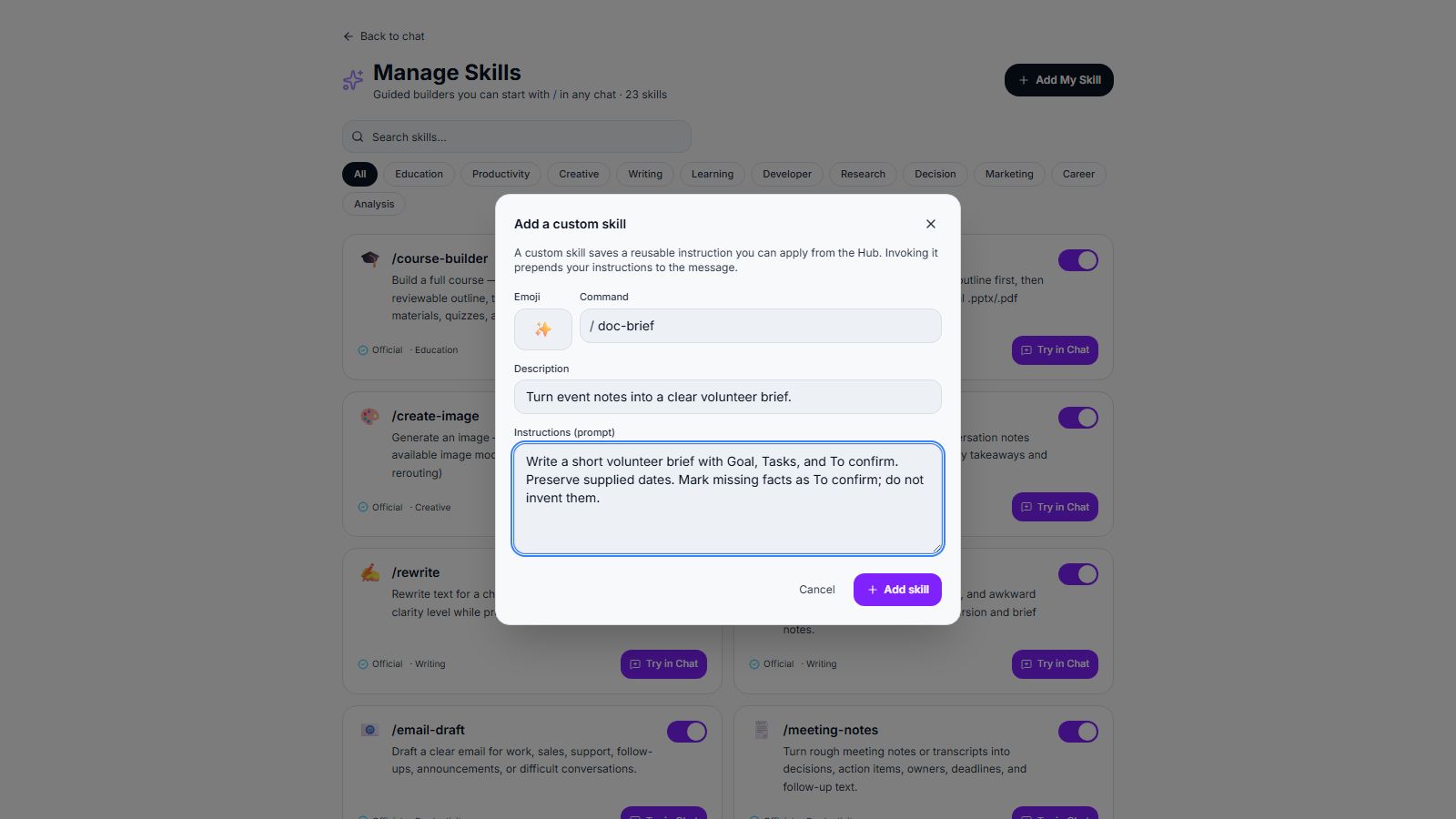
Custom skill form with the reusable volunteer-brief instructions.
The resulting volunteer brief with the missing meeting time under To confirm.
Workflow at a glance
Section titled “Workflow at a glance”