Set your response preferences
Custom instructions help ChatterMate tailor new conversations to your background and preferred response style.
Watch the walkthrough
Section titled “Watch the walkthrough”Read the walkthrough transcript
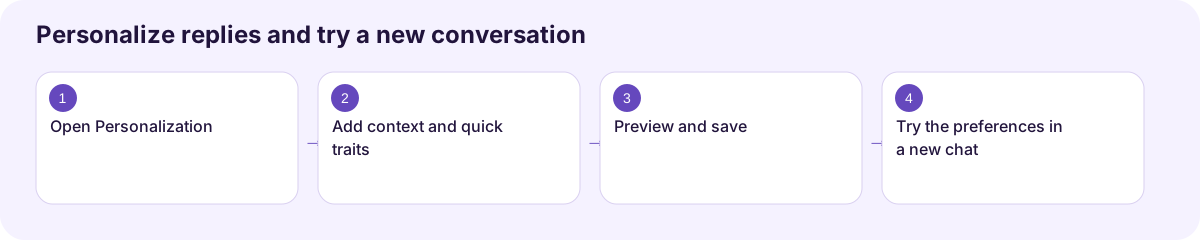
1. Open Personalization
Want replies that fit the way you work? Open Settings, then Personalization. Custom instructions apply at the start of new conversations, so they're useful for preferences you want to reuse.
2. Add context and quick traits
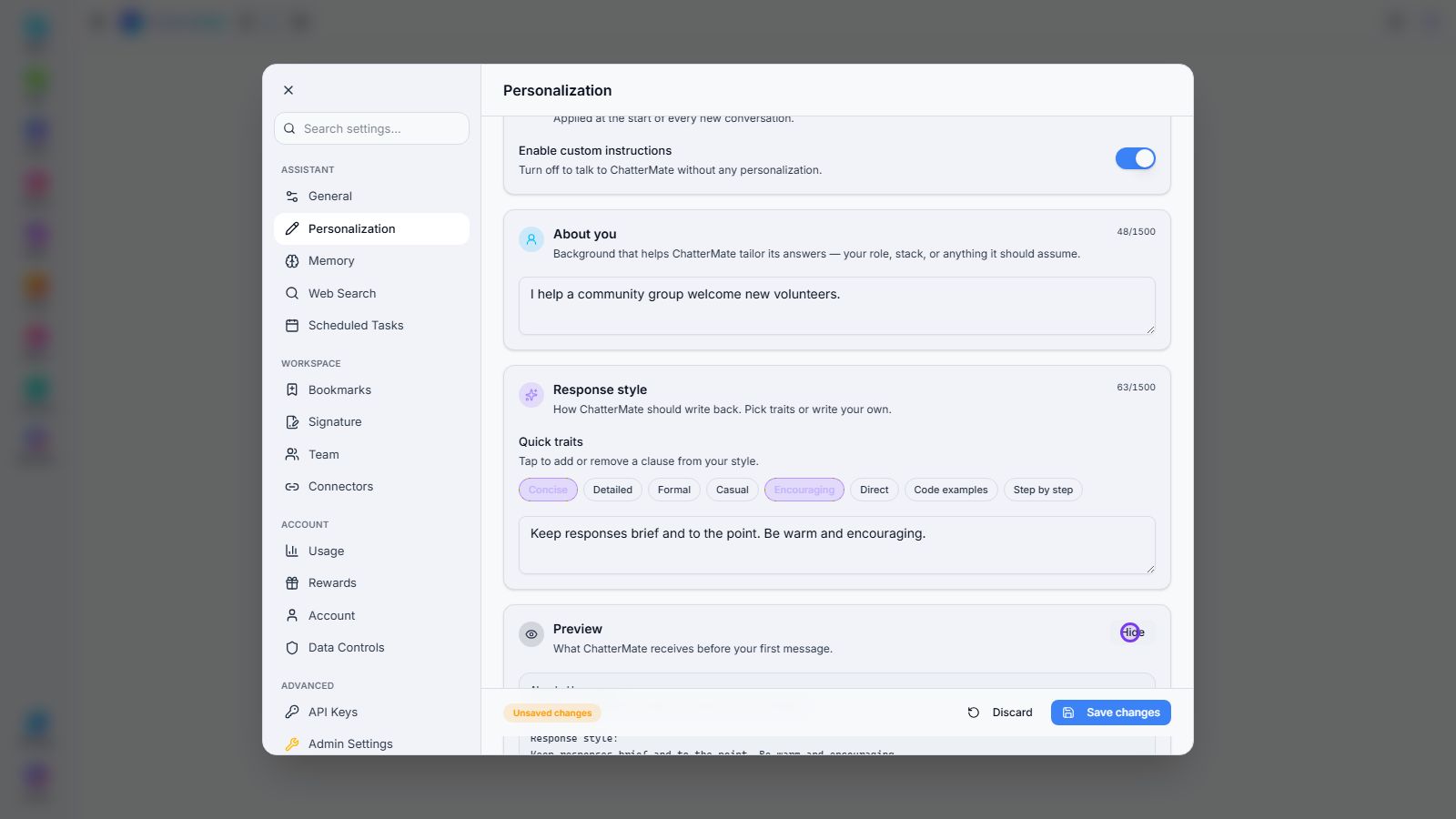
Add a little background in About you, then choose traits that suit your tasks. We're using Concise and Encouraging. Keep this focused: clear preferences are easier to follow than a long list of rules.
3. Preview and save
Open the Preview to see the instructions together. If they match what you want, choose Save changes. A preview helps you catch a tone or detail you didn't mean to apply.
4. Try the preferences in a new chat
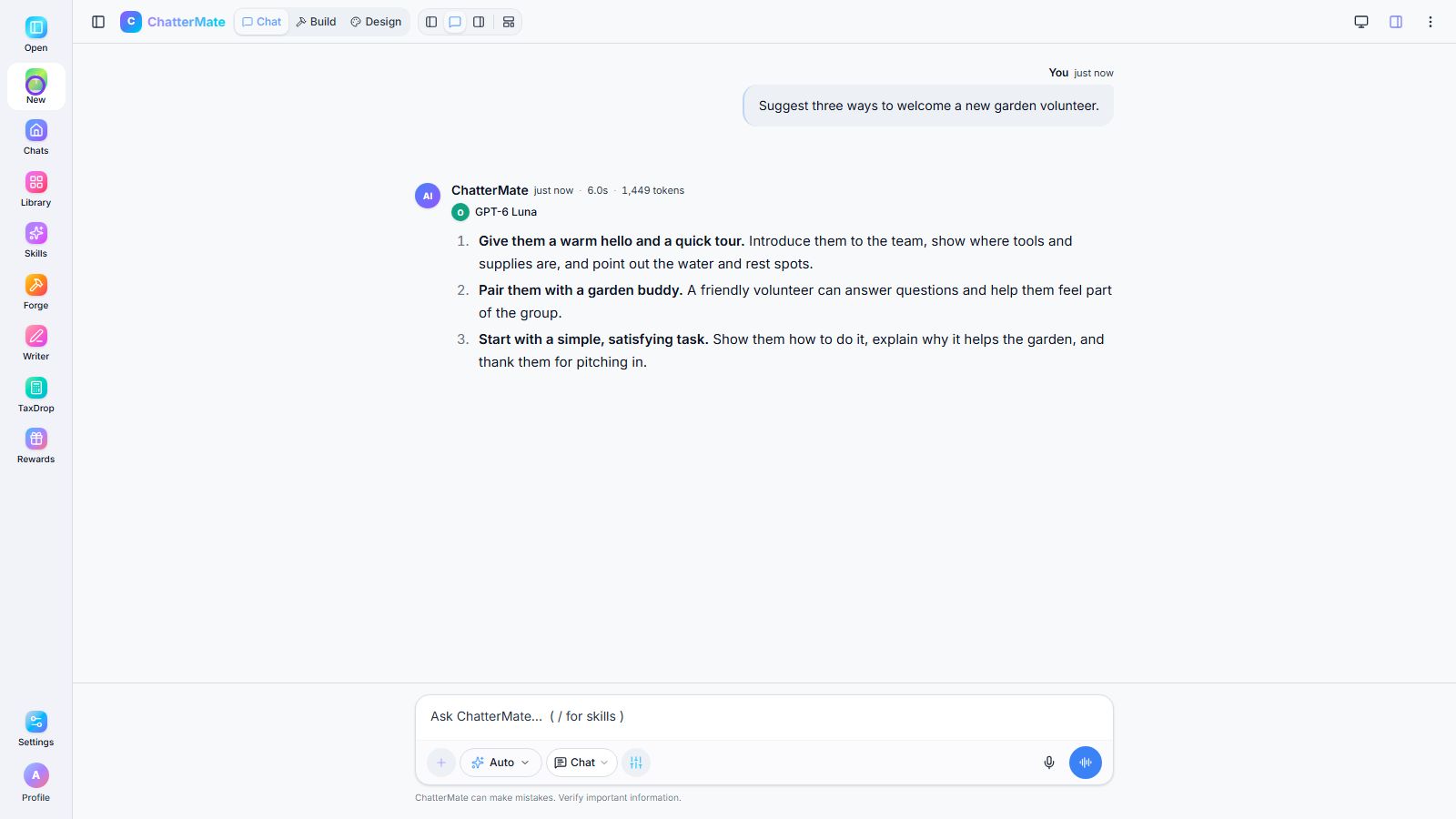
Start a new chat and try a simple request. Here, we ask for ways to welcome a volunteer. Read the answer and decide whether the tone works for you. You can return to Personalization and adjust it anytime.
Download video · Captions · Transcript
Add instructions
Section titled “Add instructions”- Open Settings → Personalization.
- Review Enable custom instructions.
- In About you, add context useful across tasks.
- In Response style, describe how you want replies written or choose quick traits.
- Use Preview to check what will be applied.
- Start a new conversation to try your preferences.
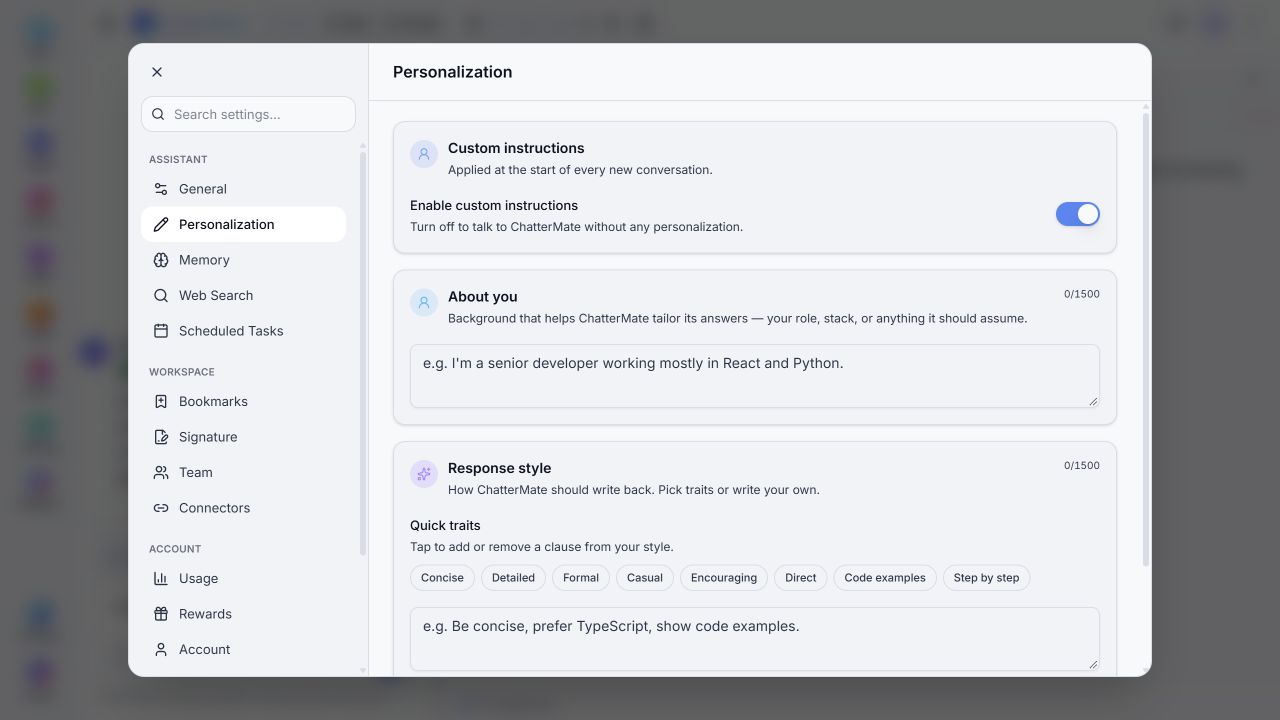
The local fields showed a 1,500-character limit each. The walkthrough verifies Preview, Save changes, and a new conversation. The recording account’s original preferences were restored afterward.
Example About you: I manage a small product team and often write guides for first-time users.
Example Response style: Use plain language. Start with the answer. For procedures, give numbered steps and explain the expected result.
The local quick traits included Concise, Detailed, Formal, Casual, Encouraging, Direct, Code examples, and Step by step. Choose traits that support the work you actually do.
Instructions are described as applying at the start of each new conversation. Do not assume a change rewrites an earlier conversation. For a single task, put its specific constraints in the message instead of adding them to permanent preferences.
Inspect styles for a single chat turn
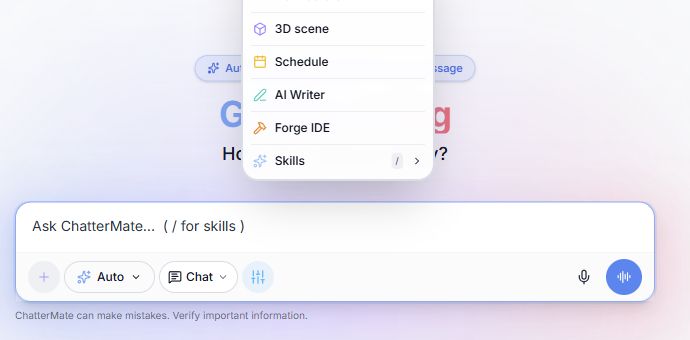
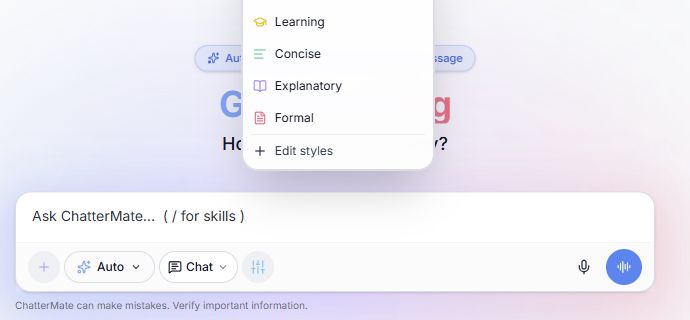
Section titled “Inspect styles for a single chat turn”The message box also has a tools menu. Open it and choose Style to inspect choices such as Normal, Learning, Concise, Explanatory, and Formal. Check the selected style before sending. These controls are separate from the custom-instruction fields above.
Workflow at a glance
Section titled “Workflow at a glance”